

Checkmarks (✓) are a versatile way to track progress, create to-do lists, or visually mark completed tasks within your Google Sheets spreadsheets. Whether you’re a beginner or a seasoned Sheets user, this guide will explore various methods to add checkmarks and even customize them to your preferences.
Why Use Checkmarks in Google Sheets?
- Visual Clarity: Checkmarks offer a quick visual cue to see what’s done and what’s pending.
- Organization: They can transform your sheet into an interactive checklist.
- Data Validation: Checkboxes (which display as checkmarks) can be linked to custom values, enhancing data analysis and automation.
Method 1: Inserting Interactive Checkboxes
This is the most straightforward and functional approach:
- Select Cells: Highlight the cells where you want checkboxes to appear.
- Insert Checkbox:
- Go to the menu bar and click “Insert.”
- Select “Checkbox.”
- Click to Check/Uncheck: Clicking the box toggles the checkmark on or off.
Key Tip: You can easily copy and paste a single checkbox to fill other cells.
Method 2: Typing the Checkmark Character
If you need a simple checkmark symbol without the interactivity of a checkbox:
- Select Cell: Choose the cell where you want the checkmark.
- Keyboard Shortcut:
- On Windows: Hold down the Alt key and type 0252 on the numeric keypad.
- On Mac: Hold down Option and type V.
- Alternative: Copy and paste the checkmark symbol (✓) from this guide or another source.
Method 3: Using the CHAR Function
For those comfortable with formulas, the CHAR function provides another option:
- Enter Formula: In the desired cell, type =CHAR(10003)
- Press Enter: The checkmark symbol will appear.
Advanced Tip: Use conditional formatting to automatically apply checkmarks based on cell values (e.g., “Yes” or “Complete”).
Related: Why does my Google Chrome keep quitting unexpectedly on Mac?
Method 4: Custom Checkboxes with Data Validation
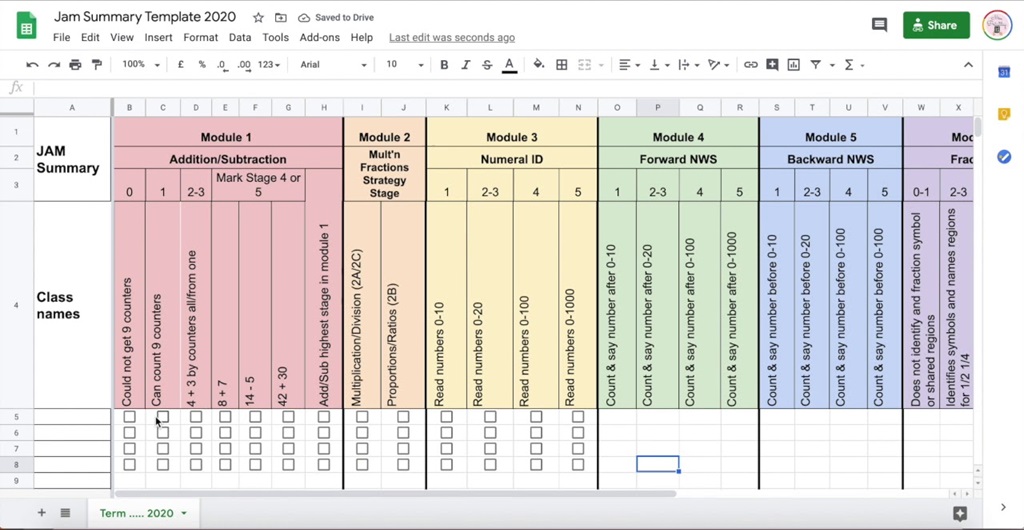
This method is ideal for linking checkmarks to specific values (e.g., “Yes/No” or “True/False”):
- Select Cells: Choose the range where you want the checkboxes.
- Data Validation:
- Go to “Data” in the menu and select “Data validation.”
- In the “Criteria” dropdown, select “Checkbox.”
- Under “Use custom cell values,” enter your desired checked/unchecked values (e.g., “Yes” for checked, “No” for unchecked).
- Click “Save.”
Method 5: Special Characters and Emoji
For a bit of fun, you can use alternative checkmark symbols:
- Insert Menu: Go to “Insert” > “Special characters.”
- Search: Type “checkmark” or “check” to find different symbols.
- Emoji: Use your computer’s emoji keyboard (usually accessible with a keyboard shortcut).
Customization Tips
- Colors: Change the color of checkboxes using conditional formatting.
- Symbols: Use the CHAR function with different codes to find alternative symbols.
- Checkbox Size: Adjust cell height and width to resize the checkbox.
Troubleshooting
- Checkmark Not Appearing: If you’re using the keyboard shortcut, ensure Num Lock is enabled.
- Function Errors: Double-check your formulas for typos.
Beyond Checkmarks
Google Sheets offers a variety of other tools to visually enhance and organize your data, including:
- Conditional Formatting: Change colors, add icons, or even create progress bars based on cell values.
- Data Validation Dropdowns: Create interactive lists with pre-defined options.
- Sparkline Charts: Insert mini-charts directly into cells to visualize trends.
Let me know if you’d like a deeper dive into any of these methods or have other Google Sheets questions!