
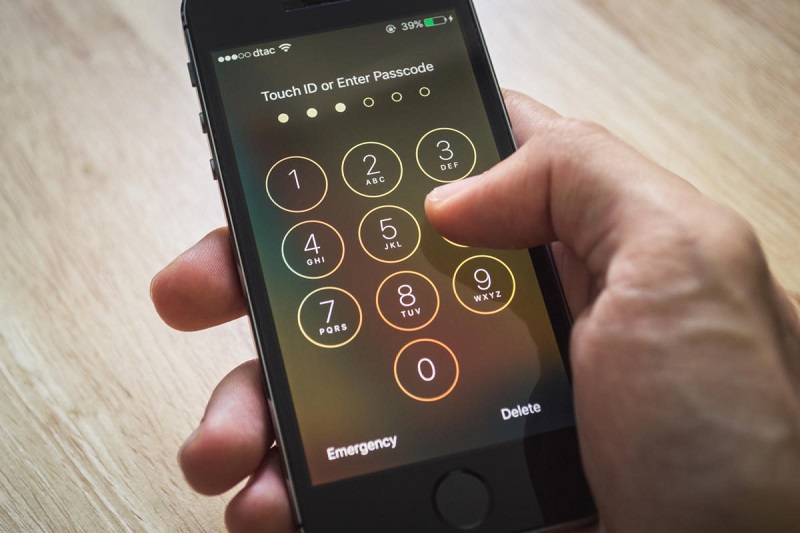
Read this complete guide where we will teach you how to set an iPhone screen lock. Find out now how to protect your data on your Apple smartphone!
You care about your privacy and want to prevent someone from snooping on your smartphone. With our guide, we will teach you just how to lock and unlock the iPhone screen so that your iPhone is always safe. You may not know, but it is possible to lock the Apple smartphone both remotely and locally. Let’s see how it’s done!
Remote iPhone screen lock
Have you forgotten your iPhone at a friend’s house or office and want to lock it so that no one goes to peek through your smartphone data? To lock the iPhone screen, you need to connect from your computer to iCloud.com and log in with your Apple ID. Then, click on the Find iPhone icon, type your Apple ID again and, after a few seconds, you will see the Apple Maps map appear.
At this point, click on all devices and, in the menu that appears, click on the name of your device. Do you see a green dot next to your iPhone name? Good sign. It means that you have located the phone and can lock it. If, on the other hand, you cannot locate your smartphone, you cannot lock the screen. Remember that if the phone is turned off or not connected to the Internet, it cannot be found.
When you have found your iPhone on the map, click on the Lost Mode icon you see at the top right. Then, follow the directions that appear on the screen. You will see that it is very simple. You just need to type in a phone number, set an unlock code and then a personalized message. Once you’re done, hit the Finish button. To find and lock your iPhone remotely, you can also use the Find iPhone app.
How to lock iPhone screen with unlock code
Now let’s see how to lock the iPhone screen if you forgot to set the unlock code when you set up your phone after purchasing it. First, press the gear icon to access the iPhone settings, and then select Touch ID and code from the screen you see appear.
Then, continue by tapping on Enable code and type twice the 6-digit code you need to lock the iPhone screen. You can also create a 4-digit unlock code or set an unlock password consisting of numbers, letters and special characters. You have to press on the item Code options and choose custom alphanumeric code or 4-digit numeric code from the menu that appears. Then, type in the code or password, copy it to the next screen and you’re done.
IPhone screen lock with Touch ID code
Let’s see now how you can perform the iPhone screen lock using the Touch ID code. With this system, you can lock your phone screen simply with your fingerprint. Just access your iPhone settings by pressing the gear icon, select Touch ID and passcode from the screen you see and type in your phones unlock code.
If the iPhone Unlock option is not activated, move the unlock switch to ON. Then, tap on Add a fingerprint and follow the instructions to configure the recognition of your fingerprint. Then, place your finger on the Home button on your phone and when you see the word, Adjust the grip on the screen, take your iPhone and put your finger on the Home button again. Perfect, now you have locked the phone screen with your fingerprint.
Remove the iPhone screen lock
If you get tired of typing the code or using Touch ID every time you have to use your phone, you can always remove the iPhone screen lock. How you do it? We will explain it to you immediately! You must always access the settings by tapping on the gear icon, then select Touch ID and code and enter the PIN. On the screen that appears, press on Disable code and tap the Disable button to confirm the operation.
Now you no longer have to enter the passcode to use your iPhone. Do you want to remove the Touch ID too? No problem, the process is very simple. Open the settings by always pressing the icon marked with gear and tap on Touch ID and code. At this point, you just have to remove the checkmark next to the item Unlock iPhone to disable the use of the fingerprint. Now you know how to put the iPhone screen lock on and off whenever you want to protect the data you have on your phone.