
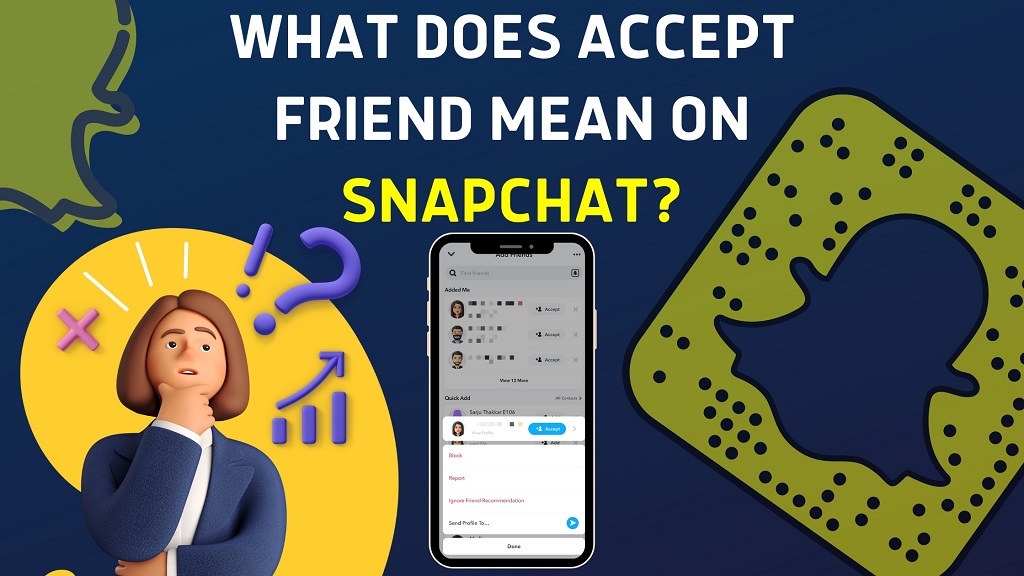
Snapchat, one of the most popular social media platforms, has become a go-to app for millions worldwide. Whether you’re sharing photos, sending messages, or posting stories, Snapchat provides a unique and fun way to communicate with friends. But sometimes, users encounter a puzzling message that says “Accept Friend” when trying to connect with someone. If you’ve ever wondered why this happens or what it means, you’re not alone. This article will explain what “Accept Friend” on Snapchat means, why it appears, and how you can manage your friends list effectively.
What Does “Accept Friend” Mean on Snapchat?
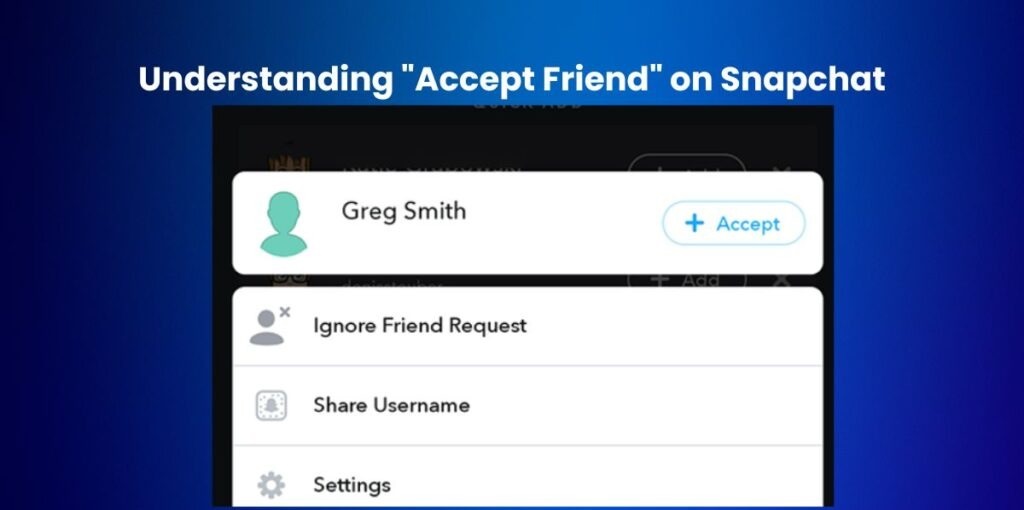
The “Accept Friend” notification appears when someone sends you a friend request on Snapchat, and you have the option to accept or decline it. This is part of Snapchat’s privacy and security measures to control who can contact you, view your snaps, or see your stories.
When someone sends you a friend request, they aren’t automatically added to your friend list. Instead, you are given the choice to either accept or reject their request. This feature ensures that users have more control over their interactions and who can communicate with them.
Once you accept the friend request, the person will be added to your friends list, and you will be able to exchange snaps, chat, and view each other’s stories. If you choose not to accept the request, the sender will not be notified, and they will remain in your “Pending” list until you make a decision.
Why Does “Accept Friend” Appear on Snapchat?
The “Accept Friend” prompt appears due to various reasons:
1. Someone Wants to Be Your Friend
This is the most common reason for seeing the “Accept Friend” message. A person who is not yet on your Snapchat friend list has sent you a request. By accepting their request, you’ll allow them to view your Snaps and communicate with you through the app.
2. Someone You Know is Trying to Add You
It could be someone you know personally or through mutual friends. Snapchat allows users to send friend requests even if they haven’t met face-to-face. If you want to connect with them, you simply click “Accept.”
3. Privacy Settings
Snapchat has strict privacy settings that ensure only those you approve can communicate with you. If someone adds you, but you have set your settings to only allow friends to message you or view your stories, the app will still require you to manually accept their friend request before you can interact with them.
4. You’ve Been Suggested or Added by a Phone Number
If you’ve synced your contacts with Snapchat, you may receive friend requests from people who have your number saved in their phone. When someone adds your number as a contact on Snapchat, you might see an “Accept Friend” request, even if you didn’t personally add them.
5. Mutual Friends or Group Chats
If you’ve been added to a group chat with someone on Snapchat, their profile may appear with the “Accept Friend” message, even though you are already part of the same conversation. Accepting the friend request in this case helps add the person to your friend list officially.
How to Accept or Decline a Friend Request on Snapchat
To manage friend requests, follow these simple steps:
- Open Snapchat: Launch the app and go to the camera screen.
- Access Your Profile: Tap on your Bitmoji or profile icon in the top-left corner.
- View Friend Requests: In the profile section, tap on the “Add Friends” option.
- Find Pending Requests: If you have pending requests, they will be listed under the “Added Me” tab.
- Accept or Decline: You will see the “Accept Friend” prompt next to each friend request. Tap “Accept” to add them, or “X” to decline the request.
Once you accept, the person will be added to your friend list, and you’ll be able to communicate with them directly.
What Happens After Accepting a Friend on Snapchat?
Once you accept a friend on Snapchat, the following changes will occur:
1. Mutual Visibility
Both you and your new friend will be able to see each other’s snaps and stories. Your stories will be visible to them, and likewise, theirs will be visible to you.
2. Snapchat Streaks
If you and your new friend begin chatting or exchanging Snaps regularly, you might even start a Snapchat streak. A streak is marked by the fire emoji next to their name, indicating that you have exchanged Snaps for consecutive days.
3. Messaging and Communication
You will also be able to send and receive private snaps or messages from that person. This opens up the full Snapchat experience with them.
4. Notifications
If they post a story, you will be notified about it, and you can interact with their content by commenting, replying to snaps, or sharing them.
Can I Unfriend Someone After Accepting Their Request?
Yes, you can unfriend someone at any time after accepting their friend request. To unfriend someone:
- Go to your Snapchat profile.
- Tap on “My Friends.”
- Find the friend you want to remove and hold down on their name.
- Select “Remove Friend” to unfriend them.
Once unfriended, they will no longer be able to see your stories, and you won’t be able to see theirs unless you re-add them.
Read More Also: How to turn on pc remotely?
FAQ About “Accept Friend” on Snapchat
Q1: Does Snapchat notify someone when I reject their friend request?
A1: No, Snapchat does not notify someone when you reject their friend request. They will simply remain in the “Added Me” section as pending until you accept or ignore them.
Q2: Can I block someone instead of rejecting them?
A2: Yes, if you do not want someone to contact you or interact with you on Snapchat, you can block them. This prevents them from sending you friend requests or viewing your content.
Q3: Can I send friend requests to people without them accepting?
A3: Yes, you can send a friend request to anyone. However, they must accept it for you to communicate via Snaps or see each other’s stories.
Q4: Why do I sometimes see “Add Back” instead of “Accept Friend”?
A4: “Add Back” appears when someone has already added you as a friend but hasn’t received a friend request from you yet. You can click on “Add Back” to connect with them.
Q5: Can I accept or reject multiple requests at once?
A5: Unfortunately, Snapchat does not currently allow you to bulk accept or reject friend requests. Each request must be managed individually.
Conclusion
The “Accept Friend” message on Snapchat is part of the app’s process for managing friend requests. It ensures that you have control over who you allow into your social circle, providing privacy and security for your interactions. Whether the request comes from someone you know personally or a stranger, you can easily manage these connections through Snapchat’s simple friend request system.
Understanding how friend requests work and how to accept or decline them will help you navigate Snapchat more effectively. Whether you’re looking to expand your social circle or maintain privacy, Snapchat’s friend management tools give you the flexibility to choose who you interact with and how you use the platform.