
In today’s digitally-driven world, the demand for seamless multimedia experiences has never been higher. Whether you’re a home theater enthusiast aiming to display content on multiple screens or a business professional seeking efficient presentation solutions, understanding HDMI splitters is essential. This guide delves deep into the intricacies of HDMI splitters, offering detailed insights, practical applications, and expert recommendations to help you make informed decisions.
Understanding HDMI Splitters
An HDMI splitter is a device that takes a single HDMI input signal and distributes it to multiple output displays. This functionality is invaluable in scenarios where identical content needs to be showcased on multiple screens simultaneously. For instance, in a retail environment, a single promotional video can be broadcast across several monitors to capture customer attention. However, if you’re troubleshooting display issues, such as no signal output, it’s important to check for hardware-related problems like a red light on mobo, which could indicate motherboard errors affecting connectivity.
Types of HDMI Splitters
HDMI splitters come in various configurations, each tailored to specific needs:
-
Passive HDMI Splitters: These are simple devices that split the signal without external power. They’re suitable for short-distance transmissions but may suffer from signal degradation over longer distances.
-
Active HDMI Splitters: Equipped with external power sources, active splitters amplify the HDMI signal, ensuring consistent quality across all outputs, even over extended distances.
-
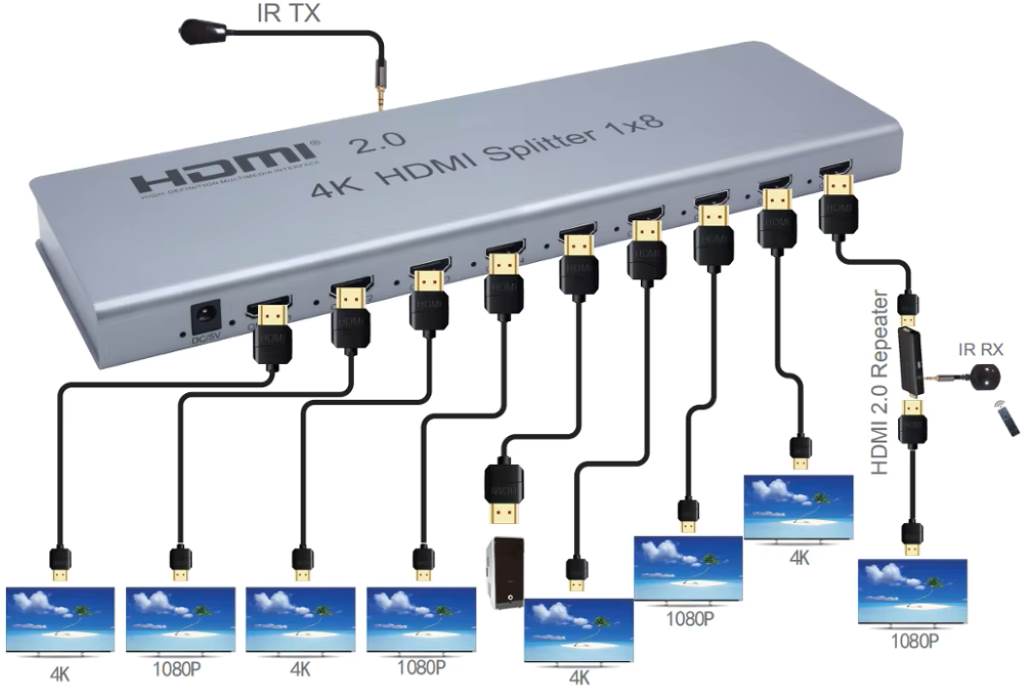
1×2, 1×4, 1×8, and 1×16 Splitters: These numbers denote the number of outputs. A 1×2 splitter sends the signal to two displays, a 1×4 to four, and so on. The choice depends on the number of displays you intend to connect.
Technical Specifications and Considerations
When selecting an HDMI splitter, it’s crucial to consider the following technical aspects:
-
Resolution Support: Ensure the splitter supports the desired resolution, be it 1080p, 4K, or higher. Mismatched resolutions can lead to display issues.
-
HDCP Compliance: High-bandwidth Digital Content Protection (HDCP) ensures that the content is protected from unauthorized copying. A compliant splitter is necessary for streaming protected content.
-
EDID Management: Extended Display Identification Data (EDID) allows the source device to recognize the capabilities of connected displays, ensuring optimal performance.
-
Bandwidth and Refresh Rates: Higher bandwidth supports better image quality and higher refresh rates, essential for applications like gaming or high-definition video playback.
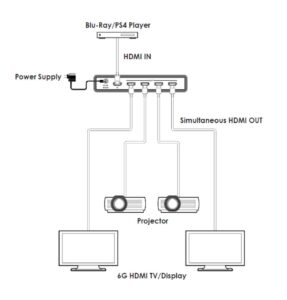
Practical Applications of HDMI Splitter Diagram
HDMI splitters are versatile tools with a wide range of applications:
-
Home Theaters: Distribute a movie from a single Blu-ray player to multiple TVs in different rooms, creating a cohesive viewing experience throughout your home.
-
Business Presentations: Display the same presentation across multiple monitors in a conference room, ensuring all participants have a clear view.
-
Retail Displays: Broadcast promotional content across several screens to attract and engage customers effectively.
-
Educational Settings: Share the same educational material on multiple displays in a classroom, facilitating better visibility for all students.
Setting Up an HDMI Splitter: Step-by-Step Guide
Setting up an HDMI splitter is straightforward:
-
Connect the Source Device: Plug the HDMI cable from your source device (e.g., Blu-ray player, gaming console) into the input port of the splitter.
-
Connect the Displays: Attach HDMI cables from the splitter’s output ports to each display device.
-
Power Up: If using an active splitter, connect it to a power source.
-
Configure Settings: Adjust display settings on your source device to ensure compatibility and optimal performance across all screens.
Common Issues and Troubleshooting
While HDMI splitters are generally reliable, you might encounter some issues:
-
No Signal on One or More Displays: Verify all connections are secure. Ensure the splitter and all devices are powered on. Check for any faulty cables.
-
Reduced Image Quality: This could be due to long cable runs or using a passive splitter. Consider upgrading to an active splitter or using higher-quality cables.
-
HDCP Errors: Ensure all connected devices, including the splitter, are HDCP compliant to avoid content protection errors.
Choosing the Right HDMI Splitter for Your Needs
Selecting the appropriate HDMI splitter involves assessing your specific requirements:
-
Number of Outputs: Determine how many displays you need to connect.
-
Distance Between Devices: For longer distances, an active splitter with signal amplification is advisable.
-
Resolution Needs: Ensure the splitter supports the highest resolution of your displays.
-
Budget Considerations: While it’s tempting to opt for cheaper options, investing in a quality splitter can prevent future issues and ensure a better experience.
Future Trends in HDMI Technology
The realm of HDMI technology is continually evolving. With the advent of HDMI 2.1, features like higher resolutions (up to 10K), dynamic HDR, and enhanced audio return channels (eARC) are becoming standard. These advancements bring not only improved visual and audio quality but also the capability to handle the most demanding devices and streaming platforms.
If you’re upgrading your home entertainment system, it’s essential to ensure compatibility with HDMI 2.1. For instance, pairing a Top Streaming Stick with an HDMI 2.1-enabled TV or receiver ensures you can fully experience features like 4K HDR streaming, Dolby Atmos audio, and smooth refresh rates for gaming. Staying informed about these innovations ensures that your setup remains future-proof and capable of handling emerging multimedia demands.
FAQs
Can I use an HDMI splitter to extend my desktop across multiple monitors?
No, HDMI splitters duplicate the same signal to all outputs. To extend your desktop, consider using an HDMI switch or a graphics card with multiple outputs.
Will using an HDMI splitter degrade the signal quality?
A high-quality active HDMI splitter maintains signal integrity across all outputs, ensuring no loss in quality.
Do HDMI splitters support 4K resolution?
Yes, many modern HDMI splitters support 4K and even higher resolutions. Always check the specifications to confirm compatibility.
Can I cascade HDMI splitters to connect more displays?
While possible, cascading splitters can lead to signal degradation and synchronization issues. It’s better to use a splitter with the required number of outputs.
Is there a maximum cable length when using an HDMI splitter?
Yes, signal quality can diminish over long distances. Using an active splitter and high-quality cables can help maintain signal integrity over longer runs.
By understanding and effectively utilizing HDMI splitter diagram, you can create versatile and efficient multimedia setups tailored to both personal and professional needs.