
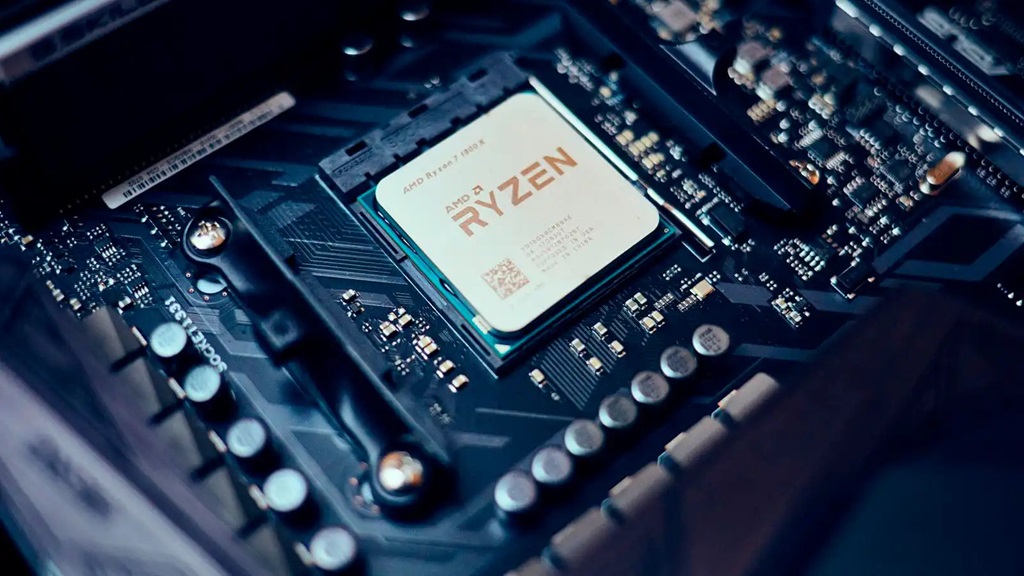
Your computer’s central processing unit (CPU) is essentially its brain, handling all the calculations and instructions that make your digital world go round. Just like any brain, it can get overworked and hot, which can lead to performance issues and even damage. So, what’s a good CPU temperature, and how can you make sure yours stays within safe limits? Let’s dive in.
Understanding CPU Temperature
CPUs generate heat as a byproduct of their operation. The amount of heat produced depends on several factors, including the CPU’s workload, design, and cooling system. Temperature is measured in degrees Celsius (°C) or Fahrenheit (°F), and it’s crucial to monitor it to ensure your CPU’s health and longevity.
Ideal CPU Temperatures: A General Rule of Thumb
While the ideal CPU temperature can vary depending on the specific model and manufacturer, here’s a general guideline:
- Idle Temperature: 30-40°C (86-104°F)
- Load Temperature (under stress): 60-80°C (140-176°F)
These are just estimates, and you should consult your CPU’s documentation for precise temperature ranges. As a general rule, keeping your CPU temperature below 80°C (176°F) under load is considered safe.
Factors Affecting CPU Temperature
Several factors can influence your CPU’s temperature:
- Workload: Demanding tasks like gaming, video editing, or running complex simulations put more stress on your CPU, leading to higher temperatures.
- Ambient Temperature: The temperature of the room where your computer is located can also impact your CPU’s temperature. Higher ambient temperatures mean your CPU has to work harder to dissipate heat.
- Cooling System: The effectiveness of your CPU cooler plays a significant role. A high-quality cooler, whether air or liquid-based, will keep your CPU running at lower temperatures.
- Overclocking: If you’ve overclocked your CPU (increased its speed beyond its factory settings), it will naturally run hotter.
Related: What Does Red Light on Mobo Mean
How to Check Your CPU Temperature

There are various ways to monitor your CPU temperature:
- BIOS/UEFI: You can usually find the CPU temperature in your computer’s BIOS or UEFI settings.
- Software Utilities: Numerous free and paid software tools, like HWMonitor, Core Temp, and Open Hardware Monitor, allow you to monitor your CPU temperature in real-time.
- Built-in Sensors: Some CPUs and motherboards have built-in sensors that can be accessed through software.
Keeping Your CPU Cool
If you notice your CPU temperature is consistently high, here are some steps you can take:
- Clean Your Computer: Dust buildup can hinder airflow and trap heat. Regularly clean your computer’s interior, especially the CPU cooler and fans.
- Reapply Thermal Paste: If you’re comfortable doing so, reapplying thermal paste between the CPU and cooler can improve heat transfer.
- Upgrade Your Cooling System: Consider investing in a more powerful CPU cooler if your current one isn’t keeping up.
- Optimize Airflow: Ensure proper airflow within your computer case by strategically placing fans and removing any obstructions.
- Adjust Fan Speeds: Many motherboards allow you to control fan speeds. Increasing fan speeds can help cool your CPU.
- Undervolt or Reduce Overclock: If you’ve overclocked your CPU, try reducing the clock speed or undervolt it to lower temperatures.
In Conclusion
Keeping a close eye on your CPU temperature is crucial for maintaining your computer’s performance and preventing damage. By understanding the factors that influence CPU temperature and taking proactive steps to keep it cool, you can ensure your CPU operates at its best for years to come.