
Imagine sitting down to work, only to watch your computer crawl through simple tasks. Frustrating, right? A slow or clunky PC isn’t just annoying—it’s a productivity killer. Research from the University of California, Irvine found that the average worker loses 21.8 minutes per day due to slow technology. Over a year, that’s over 90 hours of wasted time. The culprit? Neglect. Most users ignore basic maintenance until their PC is on its last legs.
Here’s the good news: You don’t need to be a tech expert to keep your computer running like new. With a few simple habits and tools, you can transform your PC’s performance, extend its lifespan, and avoid costly repairs. This guide isn’t about quick fixes or gimmicks. It’s about understanding how to clean PC performance through systematic maintenance—so your computer stays fast, reliable, and secure for years.
You’ll learn how to declutter your system, optimize hardware, and protect against threats that slow you down. By the end, you’ll have a step-by-step plan to maintain your PC like a pro—without spending a dime on unnecessary upgrades.
The Hidden Costs of a Neglected PC: What You’re Really Losing
The Performance Drain: Why Your PC Slows Down Over Time
Every computer slows down with use, but neglect accelerates the process. Common culprits include:
- Fragmented files: As you save and delete files, your hard drive becomes cluttered, forcing your PC to work harder to find data.
- Background processes: Unnecessary apps and services hog RAM and CPU power.
- Dust and heat: Overheating from dust buildup throttles your PC’s performance.
A study by PCWorld found that a poorly maintained PC can lose up to 50% of its speed within a year. The fix? Regular maintenance to keep your system lean and cool.
The Security Risk: How Neglect Invites Cyber Threats
Outdated software and lack of maintenance make your PC vulnerable to malware, viruses, and hackers. According to Cybersecurity Ventures, 60% of small businesses that suffer a cyberattack go out of business within six months. While you may not be a business, the risk to your personal data is just as real.
Example: An unpatched operating system or outdated antivirus software can leave your PC open to ransomware attacks.
The Lifespan Shortener: Why Dirty PCs Die Younger
Dust, heat, and wear take a toll on your PC’s hardware. A Dell study revealed that computers running hot due to dust buildup have a 30% higher failure rate. Overheating damages components like the CPU, GPU, and hard drive, leading to costly repairs or replacements.
The Productivity Killer: How a Slow PC Drains Your Time and Energy
Every minute spent waiting for your PC to respond adds up. Slow load times, freezing applications, and crashes disrupt your workflow and increase stress. A Stanford University study found that even minor delays in computer response times increase frustration and reduce productivity.
How to Clean PC Performance: A Step-by-Step Guide to a Faster Computer
Step 1: Declutter Your Hard Drive
A cluttered hard drive slows down your PC and makes it harder to find files. Start with these tasks:
- Delete temporary files: Use Windows’ built-in Disk Cleanup tool or a third-party app like CCleaner.
- Uninstall unused programs: Go to Control Panel > Programs > Uninstall a Program and remove software you no longer need.
- Organize your files: Create a logical folder structure and move files to their proper places.
Pro tip: Empty your Recycle Bin regularly—deleted files still take up space until you do.
Step 2: Optimize Your Startup Programs
Too many programs launching at startup slows your boot time and drains resources. To manage startup programs:
- Windows: Open Task Manager (Ctrl+Shift+Esc), go to the Startup tab, and disable unnecessary programs.
- Mac: Go to System Preferences > Users & Groups > Login Items and remove unwanted apps.
Example: Disabling apps like Spotify or Steam from startup can shave seconds off your boot time.
Step 3: Clean Up Your Desktop and Downloads Folder
A cluttered desktop and downloads folder slows down your PC and makes it harder to find what you need. Spend 10 minutes:
- Moving files to appropriate folders.
- Deleting duplicates or unnecessary downloads.
- Creating shortcuts for frequently used programs.
Step 4: Defragment Your Hard Drive (If Using HDD)
Fragmentation occurs when files are scattered across your hard drive, forcing your PC to work harder to access them. To defragment:
- Windows: Open Defragment and Optimize Drives, select your drive, and click Optimize.
- Mac: Use a third-party tool like Drive Genius (SSDs don’t need defragmenting).
Note: If you have an SSD, skip this step—defragmenting can shorten its lifespan.
Step 5: Update Your Operating System and Drivers
Outdated software and drivers slow down your PC and create security risks. To update:
- Windows: Go to Settings > Update & Security > Windows Update and install any available updates.
- Mac: Go to System Preferences > Software Update and install updates.
- Drivers: Use Windows Update or a tool like Driver Booster to keep drivers current.
Step 6: Run a Malware Scan
Malware and viruses can cripple your PC’s performance. Use a reputable antivirus program like Malwarebytes, Bitdefender, or Windows Defender to scan and remove threats.
Pro tip: Schedule regular scans (e.g., weekly) to catch issues early.
Step 7: Clean Your PC’s Physical Components
Dust and debris clog your PC’s fans and vents, causing overheating. To clean:
- Turn off and unplug your PC.
- Use compressed air to blow dust out of vents, fans, and components.
- Wipe down surfaces with a microfiber cloth and isopropyl alcohol (for monitors and exteriors).
Example: A dusty laptop fan can cause overheating, leading to throttled performance or even hardware failure.
Step 8: Upgrade Your RAM (If Needed)
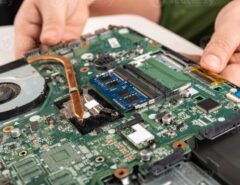
If your PC struggles with multitasking, adding more RAM can give it a significant boost. Check your PC’s specs to see how much RAM it supports, then install compatible modules.
Pro tip: 8GB is the minimum for modern use; 16GB is ideal for gaming or creative work.
Step 9: Switch to an SSD (If Using HDD)
Solid-state drives (SSDs) are faster, more reliable, and more energy-efficient than traditional hard drives (HDDs). Upgrading to an SSD can cut boot times in half and speed up file access.
Example: A PC with an SSD boots in 10-15 seconds, while one with an HDD may take 30-60 seconds.
Step 10: Monitor Your PC’s Performance
Use tools like Task Manager (Windows) or Activity Monitor (Mac) to track your PC’s performance. Look for:
- High CPU or RAM usage from specific apps.
- Unusual spikes in disk activity.
- Overheating components.
Pro tip: Use MSI Afterburner or HWMonitor to track temperatures and performance in real-time.

PC Maintenance Tips: How to Keep Your Computer Running Like New
Tip 1: Schedule Regular Maintenance
Set a reminder to perform maintenance tasks monthly:
- Run Disk Cleanup.
- Update software and drivers.
- Scan for malware.
- Clean dust from vents.
Tip 2: Use Cloud Storage for Large Files
Storing large files (e.g., videos, photos) in the cloud frees up space on your hard drive and improves performance. Services like Google Drive, Dropbox, or iCloud offer free and paid options.
Tip 3: Limit Multitasking
Running too many programs at once slows your PC. Close unused tabs and apps, and use task manager to end unnecessary processes.
Example: Chrome is notorious for consuming RAM. Close unused tabs to free up resources.
Tip 4: Adjust Your Power Settings
Optimizing power settings can improve performance and battery life:
- Windows: Go to Control Panel > Power Options and select High Performance.
- Mac: Go to System Preferences > Energy Saver and adjust settings for better performance.
Tip 5: Use a Cooling Pad for Laptops
Overheating throttles performance. A cooling pad with fans can keep your laptop running smoothly during intense tasks.
Tip 6: Backup Your Data Regularly
Hard drives fail without warning. Use an external drive or cloud service to back up important files weekly.
Pro tip: Use Windows File History or Time Machine (Mac) for automatic backups.
Tip 7: Reinstall Your OS as a Last Resort
If your PC is still slow after trying everything, a fresh OS install can work wonders. Back up your data first, then reinstall Windows or macOS. This removes bloatware and resets your system to factory performance.
Computer Speed Boost: Advanced Techniques for Power Users
Technique 1: Overclock Your CPU or GPU
Overclocking increases your processor’s speed beyond its default settings. Use tools like Intel Extreme Tuning Utility or MSI Afterburner to safely push your hardware. Note: Overclocking generates heat, so ensure proper cooling.
Technique 2: Disable Visual Effects
Windows and macOS use animations and visual effects that can slow down older PCs. To disable:
- Windows: Go to Settings > System > Advanced system settings > Performance Settings and select Adjust for best performance.
- Mac: Reduce transparency and animations in System Preferences > Accessibility > Display.
Technique 3: Upgrade Your Graphics Drivers
Outdated graphics drivers hurt gaming and creative performance. Update them regularly via NVIDIA GeForce Experience, AMD Radeon Software, or Intel Driver & Support Assistant.
Technique 4: Use a Lightweight Antivirus
Some antivirus programs slow down your PC. Opt for lightweight options like Windows Defender, Bitdefender, or Kaspersky, which offer strong protection without bogging down your system.
Technique 5: Disable Superfetch and Prefetch (Windows Only)
These features are meant to speed up your PC but can sometimes cause lag. To disable:
- Open Run (Win + R), type services.msc, and disable Superfetch and Prefetch.
Technique 6: Enable Trim for SSDs
Trim helps your SSD maintain speed by clearing unused data. To enable:
- Open Command Prompt as admin, type fsutil behavior set disabledeletenotify 0, and press Enter.
Technique 7: Use a RAM Disk for Temporary Files
A RAM disk uses your PC’s memory as a super-fast temporary storage drive. Tools like ImDisk let you create one for files you access frequently.
Real-Life Examples: How Cleaning and Maintaining PCs Transformed Performance
Case Study 1: The Gamer Who Doubled His FPS
John’s gaming PC was struggling with frame drops. After cleaning dust from his GPU, updating drivers, and closing background apps, his FPS in Fortnite jumped from 45 to 90.
Key Takeaway: Dust and outdated drivers are silent performance killers.
Case Study 2: The Freelancer Who Reclaimed 10 Hours a Month
Sarah’s laptop was slow and unreliable. She ran Disk Cleanup, uninstalled unused programs, and upgraded to an SSD. Her boot time dropped from 2 minutes to 15 seconds, and she gained back 10 hours a month in lost productivity.
Key Takeaway: Small maintenance tasks add up to big time savings.
Case Study 3: The Student Who Saved His Laptop From Overheating
Mark’s laptop kept shutting down during exams. He cleaned the fans and vents with compressed air, and the overheating stopped. His laptop ran smoothly for the rest of the semester.
Key Takeaway: Regular physical cleaning prevents hardware damage.
Common Mistakes That Ruin PC Performance
1. Ignoring Software Updates
Outdated software slows your PC and creates security risks. Enable automatic updates for your OS and apps.
2. Using Too Many Antivirus Programs
Multiple antivirus programs conflict and slow down your PC. Stick to one reliable option.
3. Filling Up Your Hard Drive
Aim to keep at least 15-20% of your hard drive free for optimal performance.
4. Skipping Regular Reboots
Restarting your PC clears RAM and stops background processes. Do it at least once a week.
5. Downloading Shady Software
Freeware and pirated software often come with malware. Stick to reputable sources.
6. Overlooking Physical Cleaning
Dust and debris cause overheating and hardware failure. Clean your PC every 3-6 months.
7. Not Backing Up Data
Hard drives fail without warning. Use cloud storage or an external drive to back up important files.
Related Topics:
FAQs: Your Top Questions About Cleaning and Maintaining Your PC
1. How often should I clean my PC?
- Software: Run maintenance tasks (e.g., Disk Cleanup, malware scans) monthly.
- Hardware: Clean dust and debris every 3-6 months.
2. What’s the best way to speed up a slow PC?
Start with:
- Decluttering your hard drive.
- Updating software and drivers.
- Scanning for malware.
- Upgrading to an SSD if you’re using an HDD.
3. Do I need to defragment my SSD?
No. Defragmenting an SSD can shorten its lifespan. SSDs don’t suffer from fragmentation like HDDs.
4. How can I tell if my PC is overheating?
Signs include:
- Loud fan noise.
- Sudden shutdowns or restarts.
- Slow performance under load.
Use HWMonitor to check temperatures. CPUs should stay below 85°C under load; GPUs below 90°C.
5. Is it worth upgrading my PC, or should I buy a new one?
It depends on your PC’s age and specs. Upgrading RAM, switching to an SSD, or adding a better GPU can extend your PC’s life for a fraction of the cost of a new one.
6. What’s the best antivirus for performance?
Lightweight options like Windows Defender, Bitdefender, or Kaspersky offer strong protection without slowing you down.
7. How do I clean my PC without damaging it?
- Use compressed air for dust.
- Avoid liquid cleaners on internal components.
- Unplug your PC before cleaning.
- Use a microfiber cloth for monitors and exteriors.
Conclusion: A Faster, Healthier PC Is Within Your Reach
Maintaining your PC isn’t about becoming a tech expert—it’s about adopting simple habits that keep your computer running smoothly. By decluttering your system, optimizing hardware, and protecting against threats, you’ll transform your PC’s performance and extend its lifespan.
Remember: A little maintenance goes a long way. Spend 30 minutes a month on these tasks, and you’ll save hours of frustration—and potentially hundreds of dollars in repairs.
Your next step? Pick one task from this guide—whether it’s running Disk Cleanup, updating your drivers, or cleaning your PC’s vents—and do it today. Your computer (and your sanity) will thank you.
Ready to Boost Your PC’s Performance?
Start with a quick audit: Open Task Manager and check which programs are hogging resources. Uninstall or disable what you don’t need. Then, pick one more task from this guide to tackle this week.
Your faster, healthier PC is just a few steps away.