
WiFi is the backbone of our connected lives, but intermittent drops can turn streaming, gaming, or working into a nightmare. You’re in the middle of a video call, and suddenly, your signal vanishes. Frustrating, right? Diagnosing these drops doesn’t require a tech degree—just a clear plan. This guide breaks down the process into simple, actionable steps to help you pinpoint and fix WiFi issues. Whether it’s a router glitch or interference, we’ve got you covered with practical tips and real-world insights. Years ago, I struggled with constant WiFi drops during online classes. After trial and error, I learned how to troubleshoot effectively, and now I’m sharing those lessons to save you time and stress. Let’s dive in and get your connection stable again.
Understand Why WiFi Drops Happen
Intermittent WiFi drops occur when your connection briefly disconnects or weakens. Common causes include signal interference, outdated hardware, or network congestion. For example, devices like microwaves or cordless phones can disrupt signals on the 2.4 GHz band. Additionally, walls or furniture may block signals, especially in larger homes. According to a 2023 study by Ookla, 68% of home WiFi issues stem from interference or router placement. Overloaded networks—say, when everyone’s streaming 4K videos—can also strain bandwidth, causing drops.
Start by observing when drops happen. Is it during specific times, like evenings when neighbors are online? Or near certain devices? My own WiFi used to falter every time I ran the microwave, especially when using technology in the classroom for virtual lessons. Noticing patterns helped me identify interference as the culprit. Keep a log of drops, noting the time and activity. This data will guide your troubleshooting. Understanding these triggers sets the foundation for effective diagnosis. Next, we’ll explore how to check your signal strength to confirm if coverage is the issue.
Check Your WiFi Signal Strength

Weak signal strength is a leading cause of WiFi drops. If your device is too far from the router, the connection becomes unstable. Signal strength is measured in dBm, with values closer to -30 dBm indicating a strong signal and -80 dBm or lower being weak. Most smartphones or laptops display signal bars, but for precision, use apps like NetSpot or WiFi Analyzer. These tools map your home’s signal coverage, revealing dead zones.
Walk around your home while checking signal strength. Note areas where bars drop significantly. In my case, I found my bedroom had a weak signal because it was two walls away from the router. Repositioning the router to a central location fixed it. If moving the router isn’t an option, consider a WiFi extender to boost coverage. Also, ensure your router’s antennas are angled correctly—vertical for single-story homes, mixed angles for multi-story ones. Thick walls or metal objects can weaken signals, so avoid placing routers near appliances. Checking signal strength helps confirm if distance or obstacles are causing drops. Now, let’s look at interference and how to tackle it.
Identify and Reduce Signal Interference
Interference is a sneaky culprit behind WiFi drops. Devices like baby monitors, Bluetooth speakers, or even neighboring WiFi networks can clog the airwaves. The 2.4 GHz band is especially prone to interference because it’s widely used. A 2022 report by the Wi-Fi Alliance noted that 55% of urban homes experience network congestion due to overlapping signals. Switching to the 5 GHz band can help, as it’s less crowded but has a shorter range.
To diagnose interference, use a WiFi analyzer app to scan nearby networks. Look for channels with heavy traffic—channels 1, 6, and 11 are common on 2.4 GHz. If your router is on a busy channel, log into its settings and switch to a less crowded one. For example, I once changed my channel from 6 to 11, and drops reduced noticeably. Also, keep routers away from electronics like microwaves or cordless phones. If you suspect Bluetooth interference, temporarily disable those devices to test. Reducing interference can stabilize your connection significantly. Up next, we’ll check if your router’s firmware is up to date.
Update Your Router’s Firmware
Outdated router firmware can cause performance issues, including WiFi drops. Firmware is the software that runs your router, controlling how it handles connections. Manufacturers release updates to fix bugs or improve stability. A 2023 survey by PCMag found that 40% of users never update their routers, leaving them vulnerable to glitches.
To check for updates, log into your router’s admin panel—usually accessible by entering an IP address like 192.168.1.1 in your browser. Look for a “Firmware Update” or “System” section. If an update is available, follow the prompts to install it. Be patient; interrupting the process can brick your router. I learned this the hard way when I skipped an update, and my connection kept dropping during gaming sessions. After updating, the issue vanished. If your router doesn’t support automatic updates, check the manufacturer’s website monthly for new firmware. Keeping firmware current ensures your router runs smoothly. Let’s move on to assessing your internet service provider’s role in drops.
Evaluate Your Internet Service Provider
Sometimes, the issue isn’t your setup but your internet service provider (ISP). ISP-related problems, like network outages or throttling, can mimic WiFi drops. For instance, during peak hours, ISPs may struggle to handle demand, causing slowdowns. A 2024 study by BroadbandNow reported that 30% of U.S. households face ISP-related disruptions monthly.
Run a speed test using tools like Ookla’s Speedtest to compare your connection against your plan’s promised speeds. If results are consistently low, contact your ISP to report the issue. Also, check for outages in your area using the ISP’s website or apps like Downdetector. When my WiFi kept dropping last year, I assumed it was my router until a speed test showed abysmal results. A quick call to my ISP revealed maintenance work nearby. Restarting your modem can also refresh the connection to the ISP’s network. If issues persist, consider switching providers after researching local options. Now, let’s explore how to test your devices for problems.
Test Your Devices for Issues
A faulty device can make WiFi drops seem like a network issue. Laptops, phones, or tablets with outdated drivers or malware can struggle to maintain connections. For example, a 2023 report by Norton found that 25% of connectivity issues tie back to device software problems.
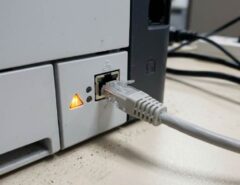
Start by testing multiple devices. If only one device drops, the issue likely lies there. Update its WiFi drivers or operating system—check the manufacturer’s website for downloads. On my old laptop, outdated drivers caused frequent disconnects until I updated them. Also, run a malware scan using trusted software like Malwarebytes to rule out infections. If the device is old, its WiFi hardware might be failing, so consider upgrading. For broader testing, connect a device directly to the router via an Ethernet cable. If drops stop, the problem is likely WiFi-specific, not your internet. Testing devices isolates whether the issue is local or network-wide. Let’s wrap up with a plan to monitor and maintain your WiFi.
Monitor and Maintain Your WiFi Network
Ongoing maintenance prevents future WiFi drops. Regular checks keep your network running smoothly, much like routine car servicing. Set a monthly reminder to reboot your router—it clears memory and refreshes connections. I started doing this after noticing fewer drops post-reboot.
Use apps like Fing to monitor connected devices. Too many devices can overload your network, so disconnect unused ones. Also, review your router’s settings periodically to ensure optimal performance, like enabling Quality of Service (QoS) to prioritize important traffic. If drops persist despite all efforts, consider upgrading your router. Modern routers support WiFi 6, offering better speed and stability. A 2024 Wi-Fi Alliance report noted that WiFi 6 reduces drops by up to 40% in busy networks. Consistent monitoring catches issues early, saving you headaches. With these steps, you’re equipped to keep your WiFi reliable.
Conclusion
Intermittent WiFi drops are annoying, but they’re fixable with the right approach. By understanding causes, checking signal strength, reducing interference, updating firmware, evaluating your ISP, testing devices, and maintaining your network, you can restore a stable connection. My own journey from WiFi woes to a steady signal taught me patience and persistence pay off. Follow these steps, and you’ll be streaming, working, or gaming without interruption in no time. Have a tip or question? Share it in the comments below or spread this guide to help others fix their WiFi. Let’s keep the internet flowing smoothly.
FAQs
Why does my WiFi drop only at certain times?
It’s likely due to network congestion or interference, like neighbors’ activity or device usage spikes. Check patterns and adjust router channels.
Can a bad router cause WiFi drops?
Yes, outdated or faulty routers can struggle to maintain connections. Update firmware or consider upgrading to a newer model.
How do I know if my ISP is causing drops?
Run speed tests and check for outages on your ISP’s website. Consistent low speeds or disruptions point to ISP issues.
Does a WiFi extender fix drops?
Extenders boost signal coverage, helping if drops occur in weak signal areas. They won’t fix interference or router problems.
Should I replace my router if drops persist?
If you’ve tried all fixes—firmware updates, channel changes, ISP checks—and drops continue, a new router may solve the issue.