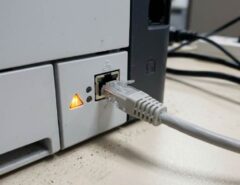

Hard drive failure is a nightmare scenario for anyone who stores valuable data on their computer. The prospect of losing precious photos, important documents, or irreplaceable work files can be overwhelming. However, if you act quickly and follow the right steps, you may be able to recover hard drive fails your data and get your computer back up and running.
Understanding Hard Drive Fails
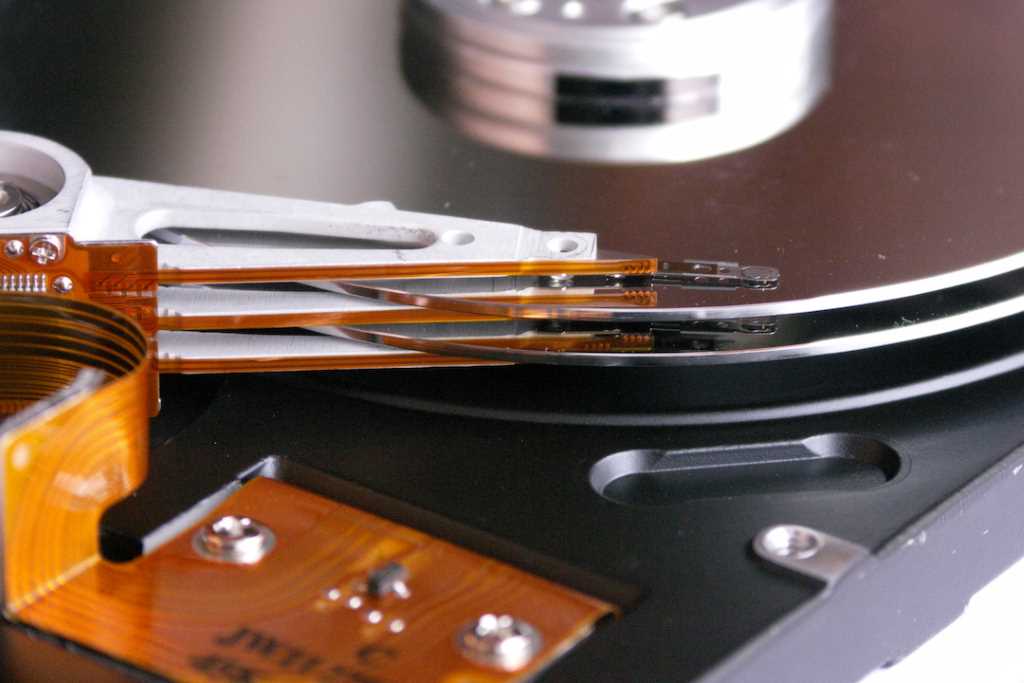
Hard drives are mechanical devices with moving parts, and like any other machine, they can fail. There are several reasons why a hard drive might fail, including physical damage, wear and tear, overheating, power surges, and manufacturing defects.
Signs of Hard Drive Failure
- Strange noises: Clicking, grinding, or whirring sounds from your computer could indicate a failing hard drive.
- Slow performance: If your computer is taking an unusually long time to start up, open programs, or save files, it could be a sign that your hard drive is failing.
- Data corruption: If you’re seeing error messages, missing files, or corrupted data, it could be a sign of hard drive failure.
- Blue screen of death: The infamous “blue screen of death” can sometimes be caused by a failing hard drive.
- Computer won’t start: If your computer won’t start at all, it could be due to a failed hard drive.
What to Do When Your Hard Drive Fails
- Stop using your computer: The moment you suspect your hard drive is failing, stop using your computer immediately. Continuing to use it could further damage the drive and make data recovery more difficult.
- Turn off your computer: Power down your computer safely.
- Disconnect your hard drive: If you’re comfortable opening up your computer, disconnect the hard drive. This will prevent it from accidentally being powered on and potentially causing further damage.
- Seek professional help: Unless you have experience with data recovery, it’s best to seek professional help. Data recovery specialists have the tools and expertise to recover data from failed hard drives.
- Consider data recovery software: If you’re comfortable using data recovery software, there are several options available. However, be aware that using data recovery software on a failing hard drive could potentially make the problem worse.
- Replace your hard drive: Once you’ve recovered your data, it’s time to replace your failed hard drive. Consider upgrading to a solid-state drive (SSD), which are generally more reliable and faster than traditional hard disk drives (HDDs). For those who have gone through the process of iPhone attempting data recovery, upgrading to an SSD can significantly enhance your device’s performance. For more insights on what happens after attempting data recovery on an iPhone, you can check out https://hangoutgraphics.com/electronics/what-happens-after-attempting-data-recovery-iphone/.
- Back up your data regularly: The best way to protect yourself from data loss due to hard drive failure is to back up your data regularly. Use an external hard drive, cloud storage, or a combination of both to ensure your data is safe.
Preventing Hard Drive Failure
- Keep your computer cool: Overheating can damage your hard drive. Make sure your computer has adequate ventilation and is not exposed to high temperatures.
- Protect your computer from power surges: Power surges can damage your hard drive. Use a surge protector to protect your computer from power fluctuations.
- Handle your computer with care: Avoid dropping or bumping your computer, as this could damage the hard drive.
- Monitor your hard drive’s health: Use software to monitor your hard drive’s health and look for signs of impending failure.
- Replace your hard drive every few years: Hard drives have a limited lifespan. Consider replacing your hard drive every 3-5 years to reduce the risk of failure.
Conclusion
Hard drive fails is a common problem, but it doesn’t have to be a disaster. By acting quickly and following the right steps, you can recover your data and get your computer back up and running. Remember, the best way to protect yourself from data loss is to back up your data regularly.